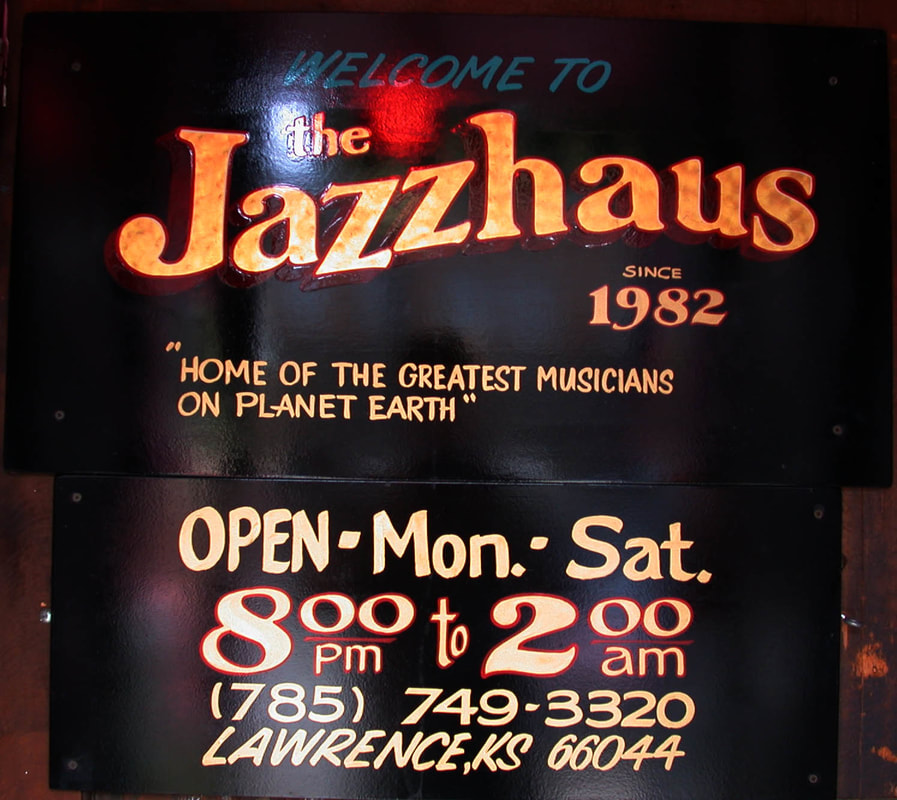
The Jazzhaus
926.5 Massachusetts
Lawrence, KS 66044
785-749-3320
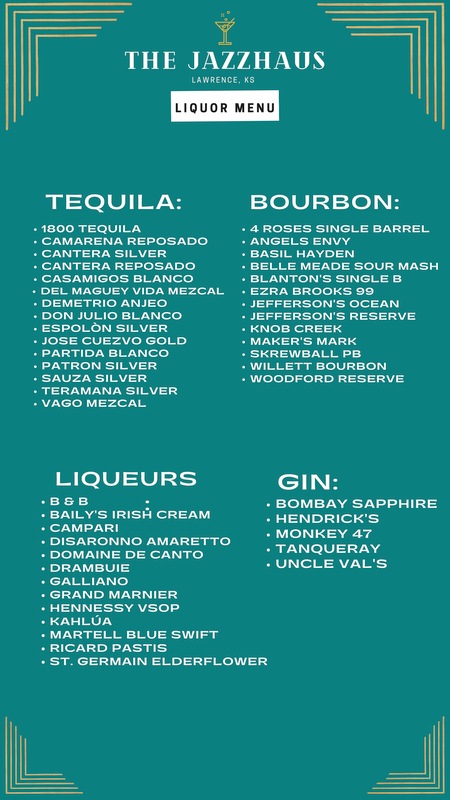
Open Three Nights A Week
Thursdays, Fridays & Saturdays!
8:00pm - 2:00am
Early Shows Start At 7:00 Most Weekends-
Check The Website or Call The Club For Details!
Always Available For Private Parties!!
Lawrence, KS 66044
785-749-3320
Open Three Nights A Week
Thursdays, Fridays & Saturdays!
8:00pm - 2:00am
Early Shows Start At 7:00 Most Weekends-
Check The Website or Call The Club For Details!
Always Available For Private Parties!!
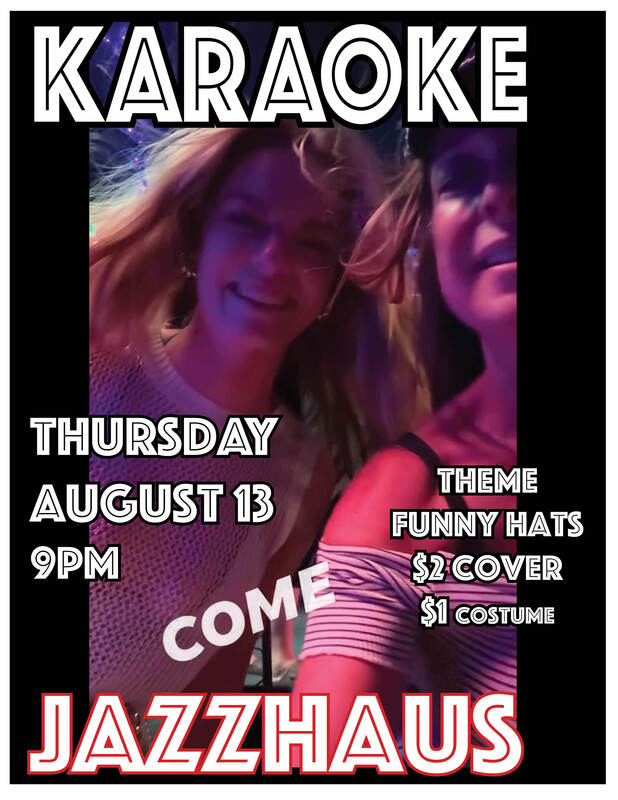

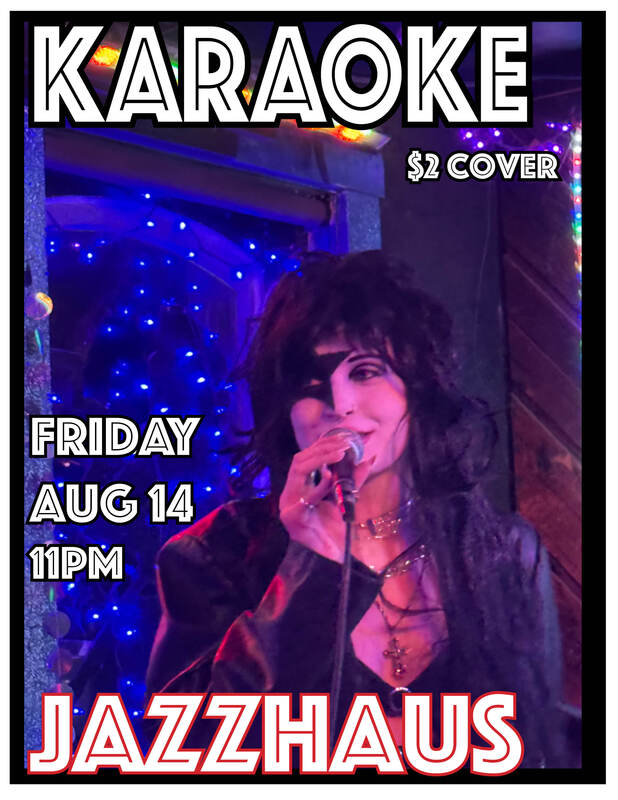

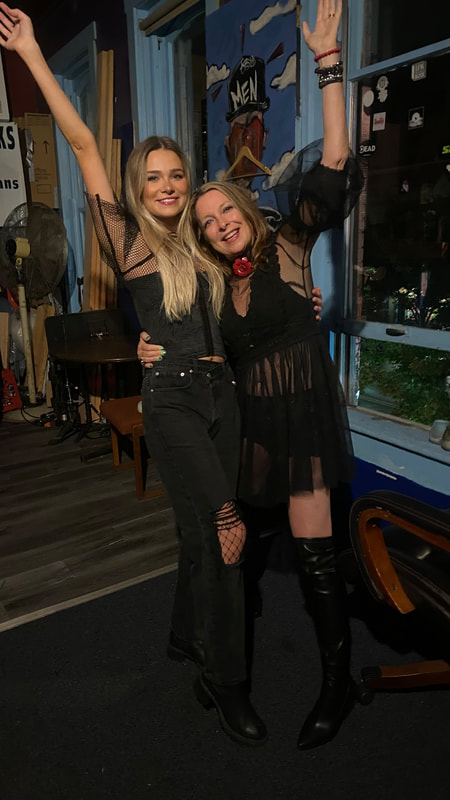
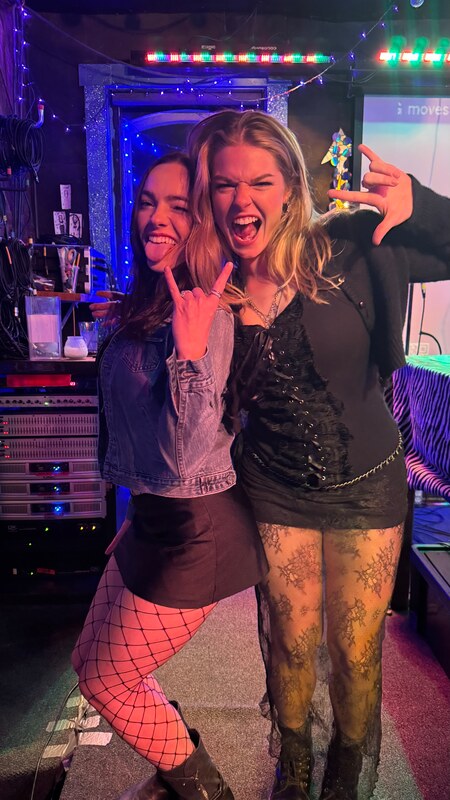
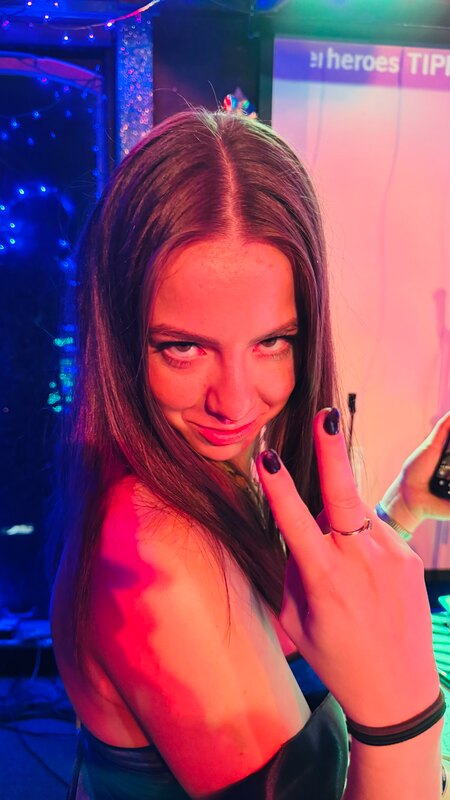
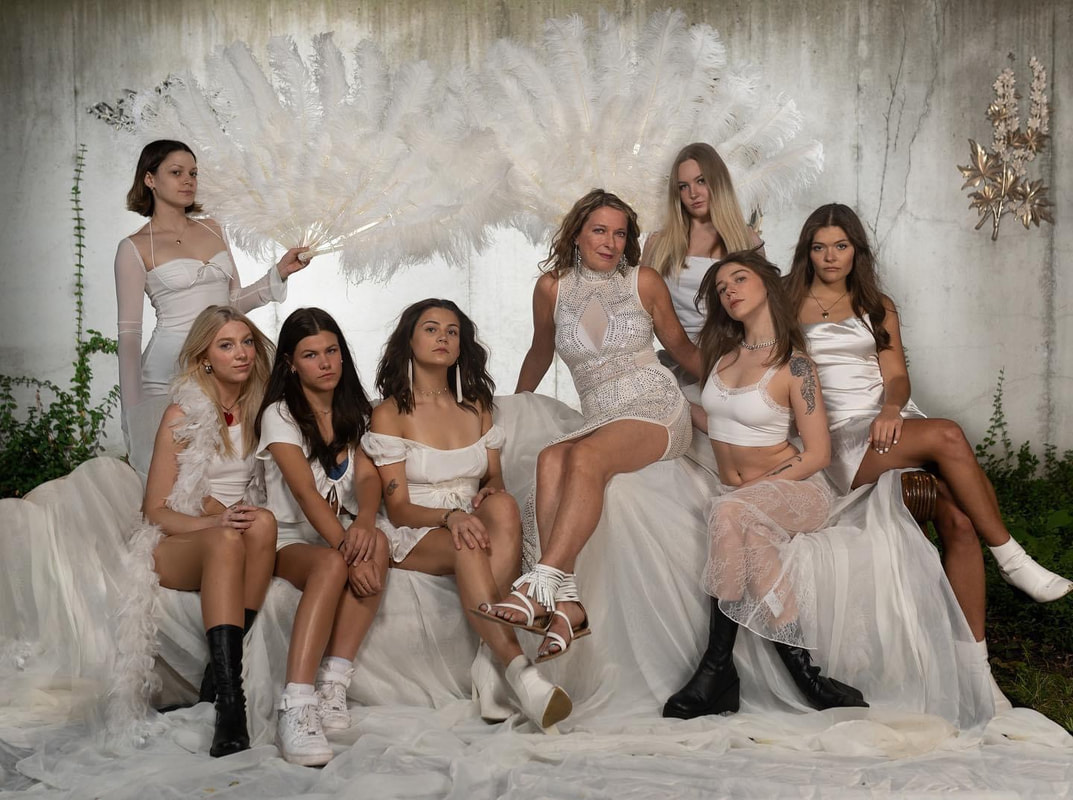
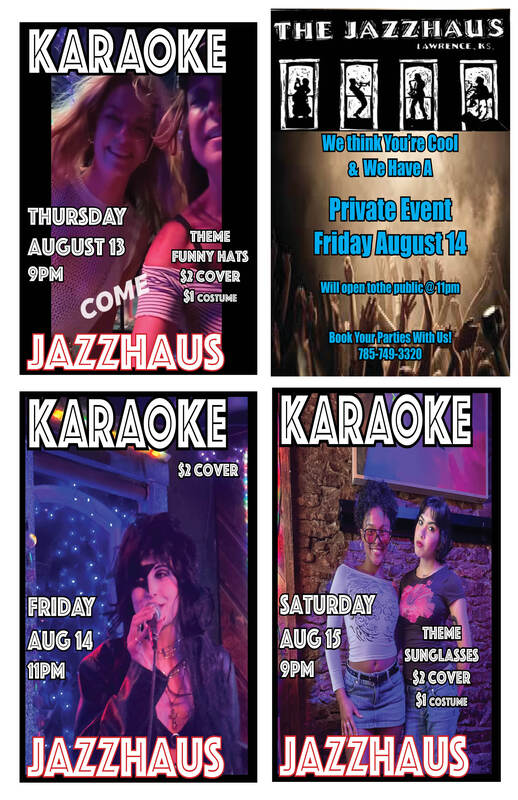
Shows This Week And Next Week!
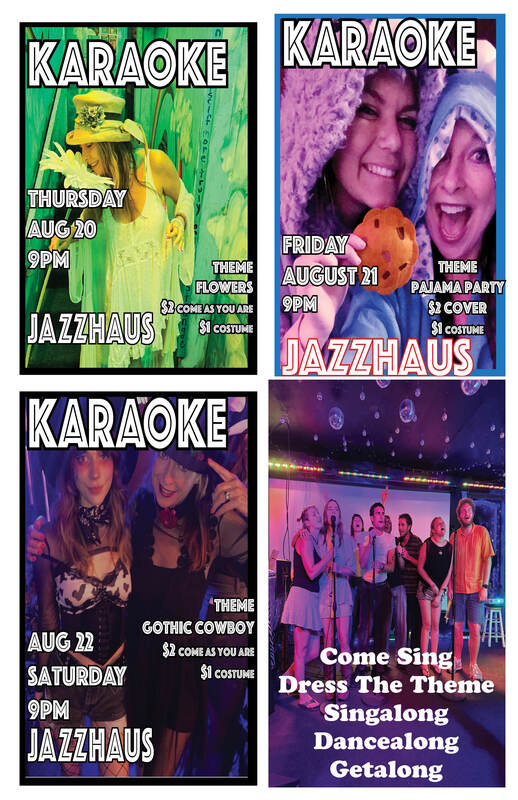
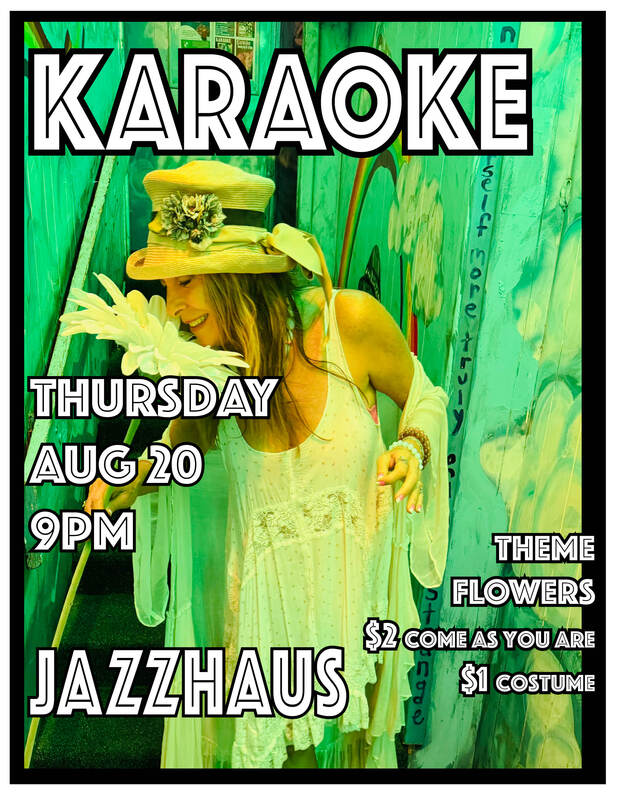
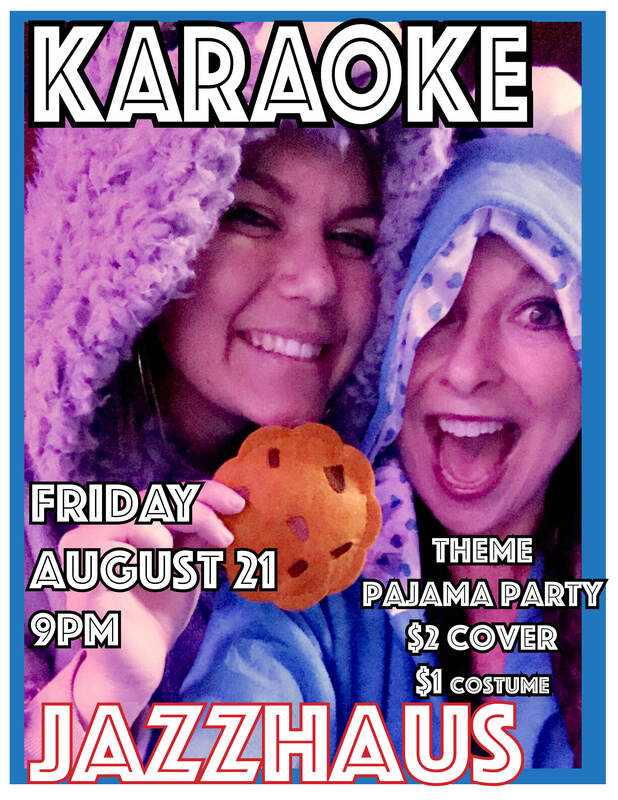
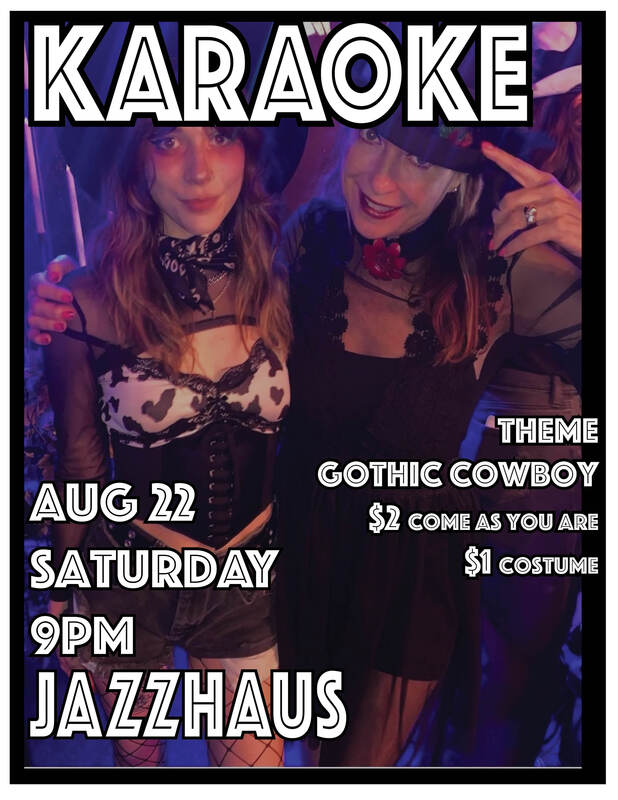
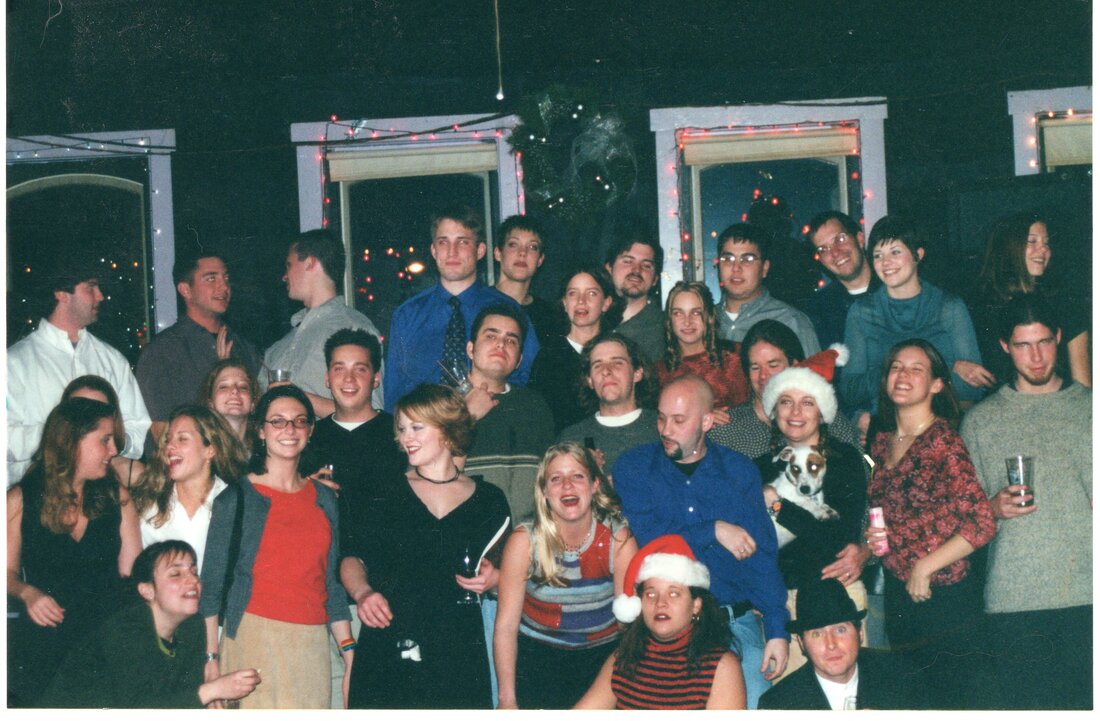
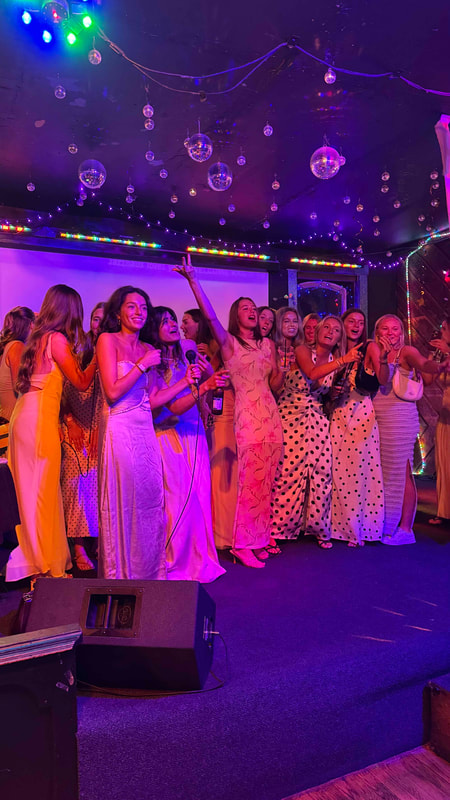
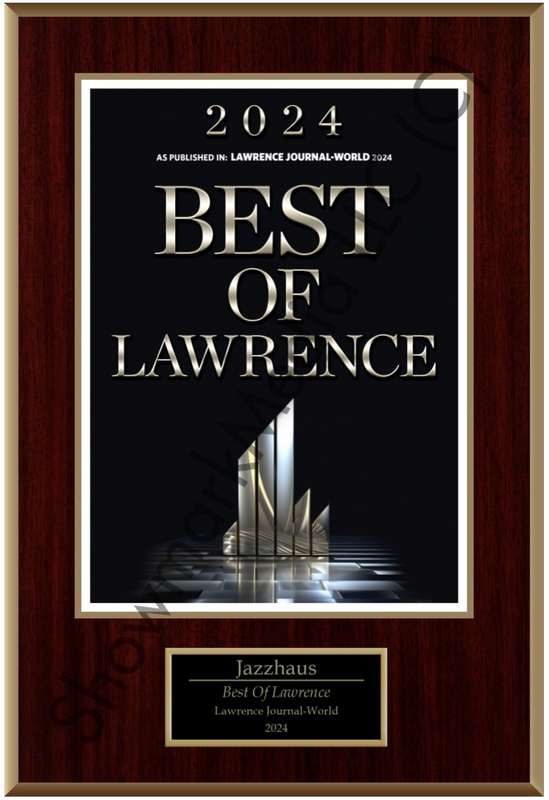
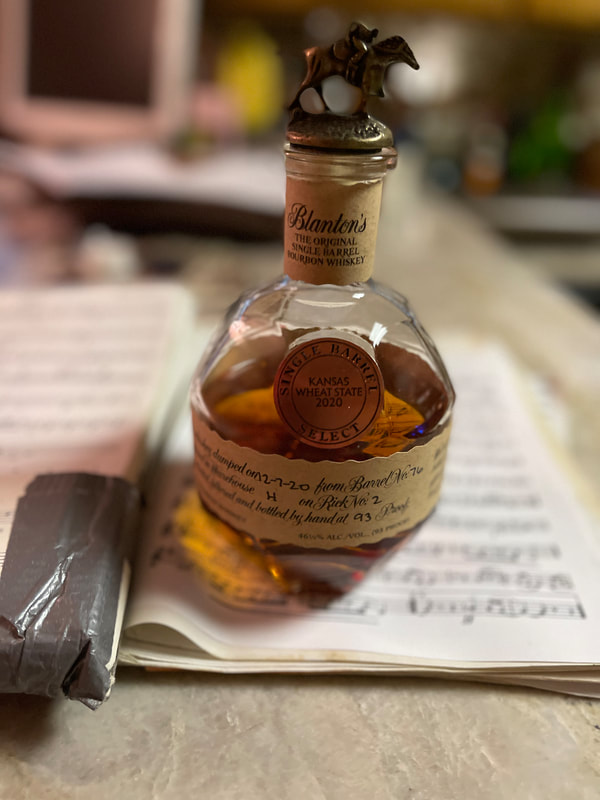
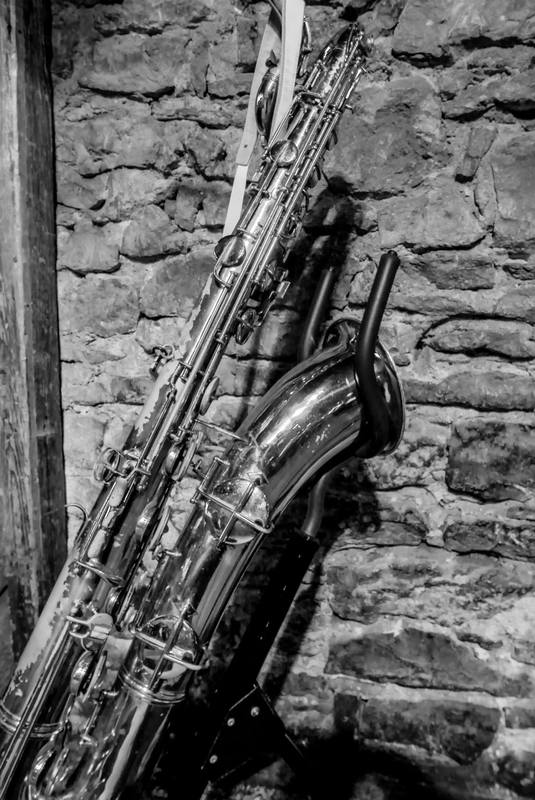
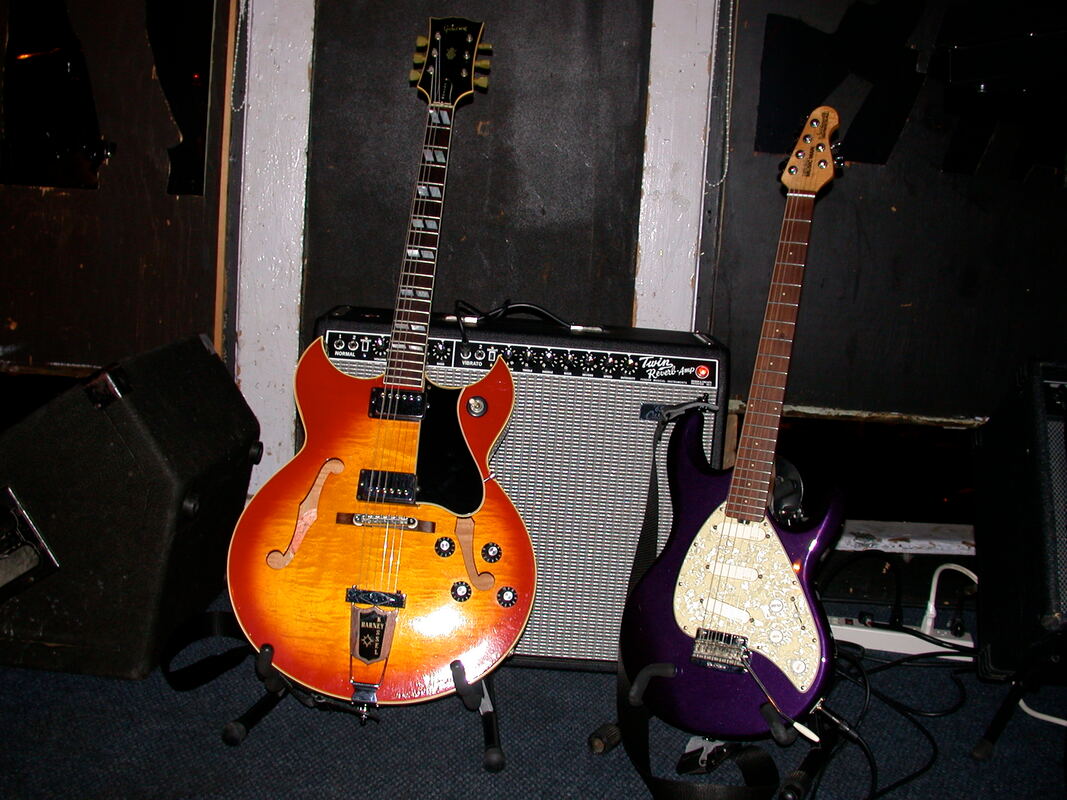
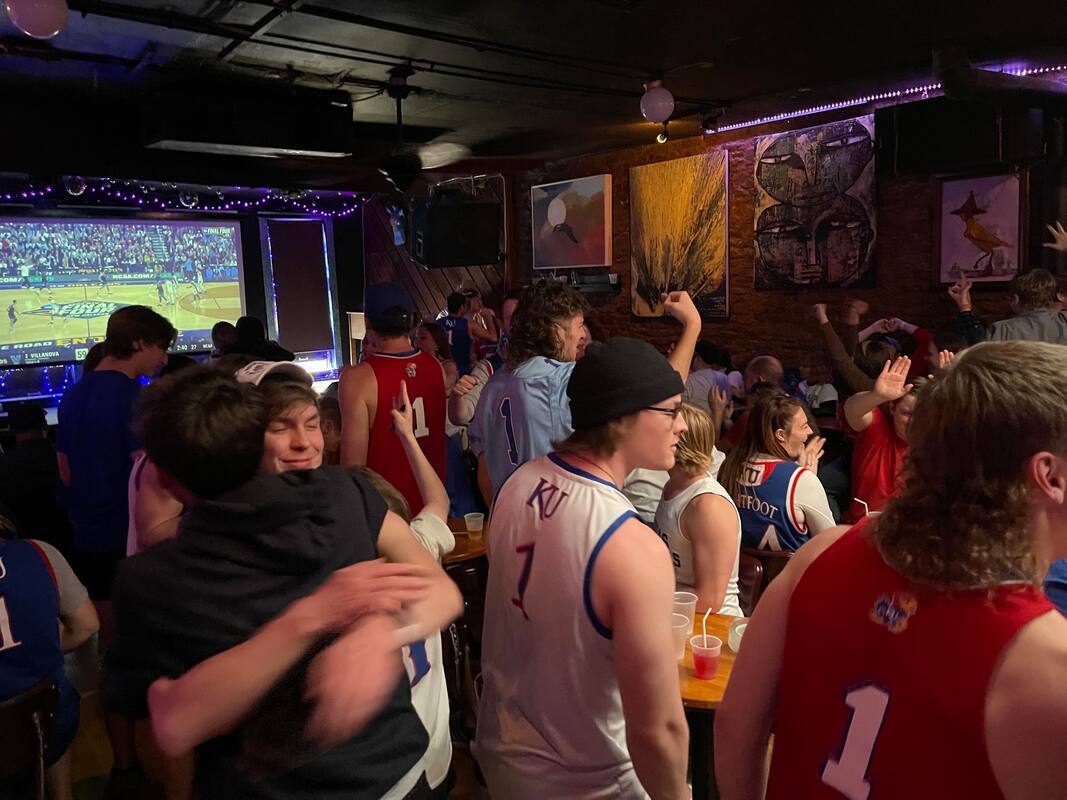
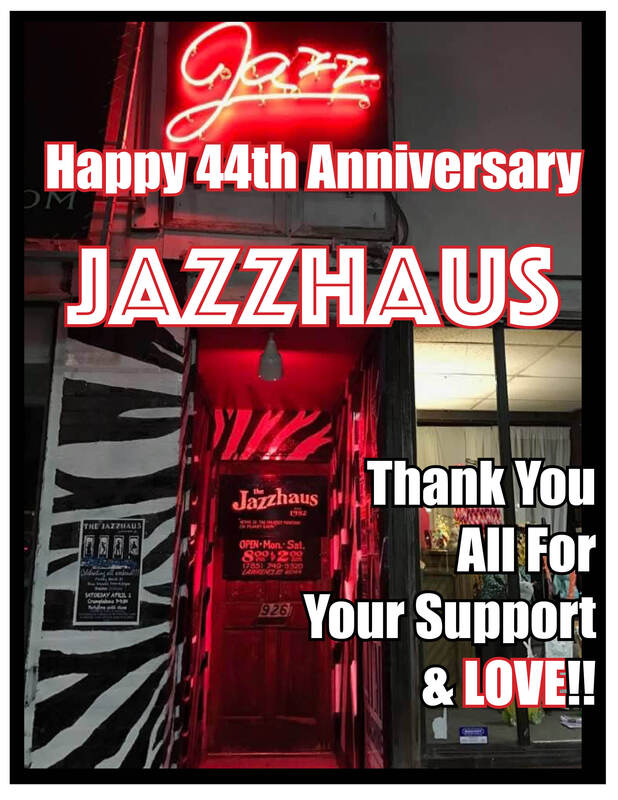
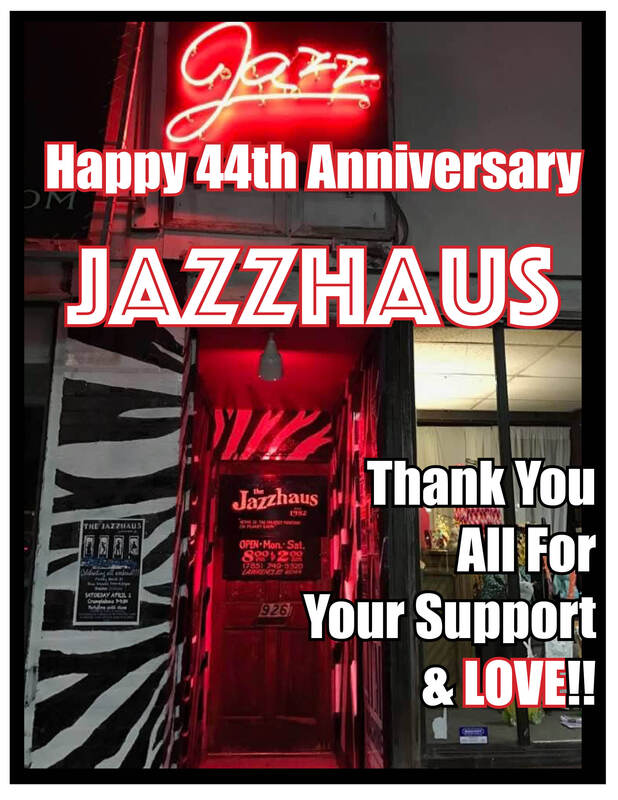
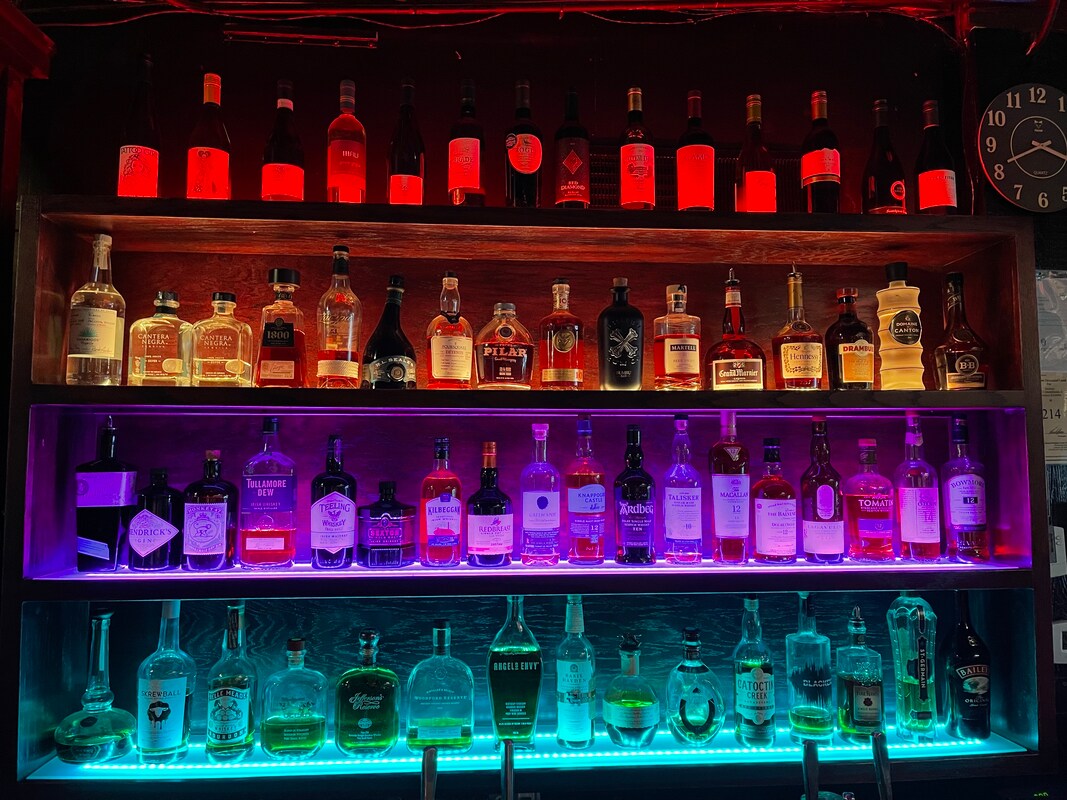
Since 1982, The Jazzhaus Has Featured The BEST In Live And Recorded Jazz, Blues, Reggae And Rock!
Come See Us Soon!!
Come See Us Soon!!